
Create Your First Video
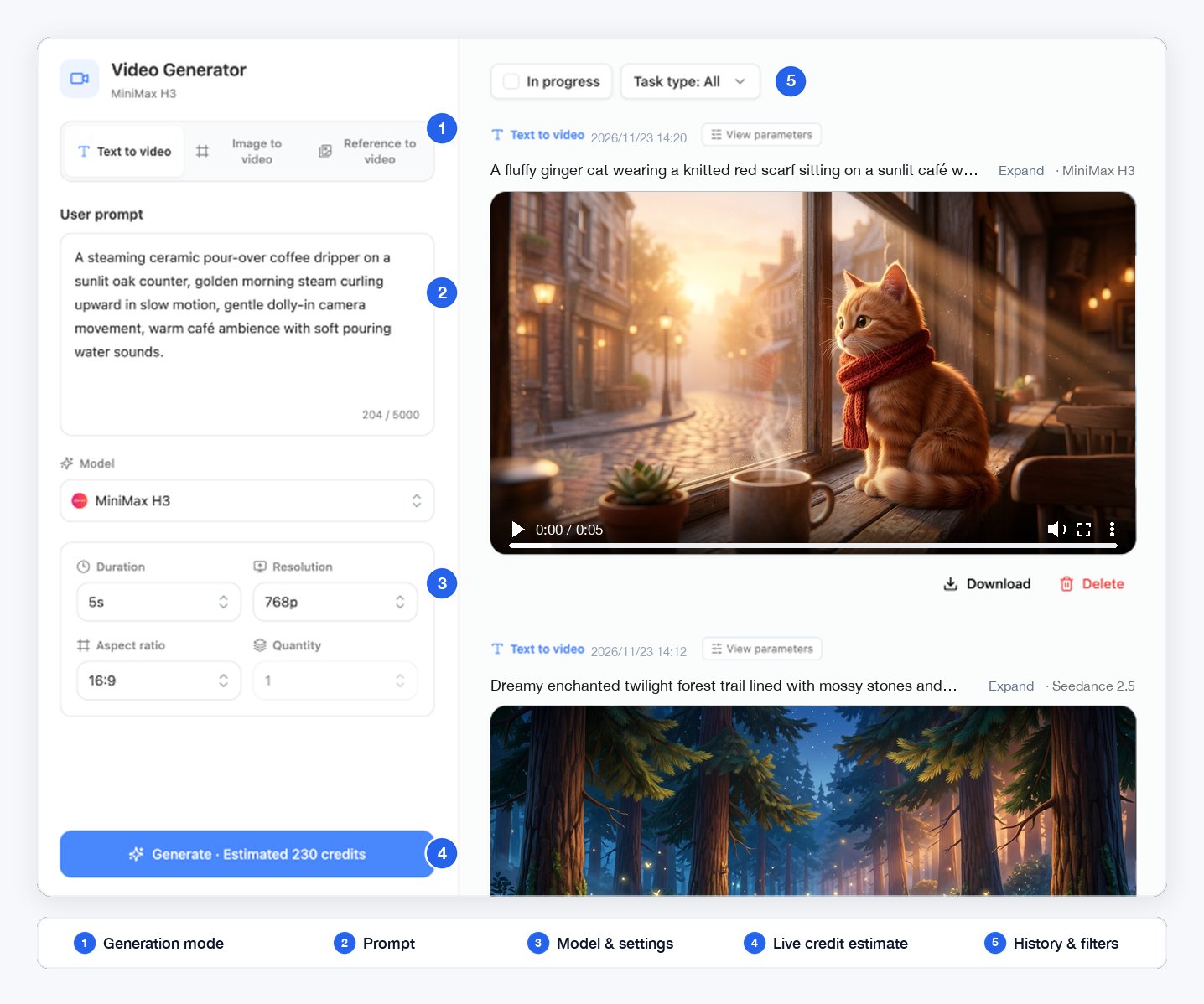
Video Generator overview: creation controls and live credit estimate on the left, generation queue and history on the right.
1
Open Video Generator
Go to app.chathub.gg/video-generator, or open Tools → Video Generator from the left sidebar. Sign in if prompted.
2
Choose a mode, model, and format
Select one of the three generation modes (Text to video, Image to video, or Reference to video), choose a model (MiniMax H3, Seedance 2.5, or Seedance 2.0), and configure Duration (4–15s), Resolution, and Aspect ratio.
3
Write your prompt and review estimated credits
Describe the scene, motion, and atmosphere in User prompt (up to 5,000 characters). Once your settings and inputs are complete, the Generate button calculates and displays the estimated cost (
Generate · Estimated X credits).4
Submit and let it run in the background
Click Generate (or press
Ctrl + Enter / Cmd + Enter). Your task appears immediately in the right workspace. You can safely switch tabs or close the page — generation continues in the cloud, and your progress restores automatically when you return.Queue & History Workspace
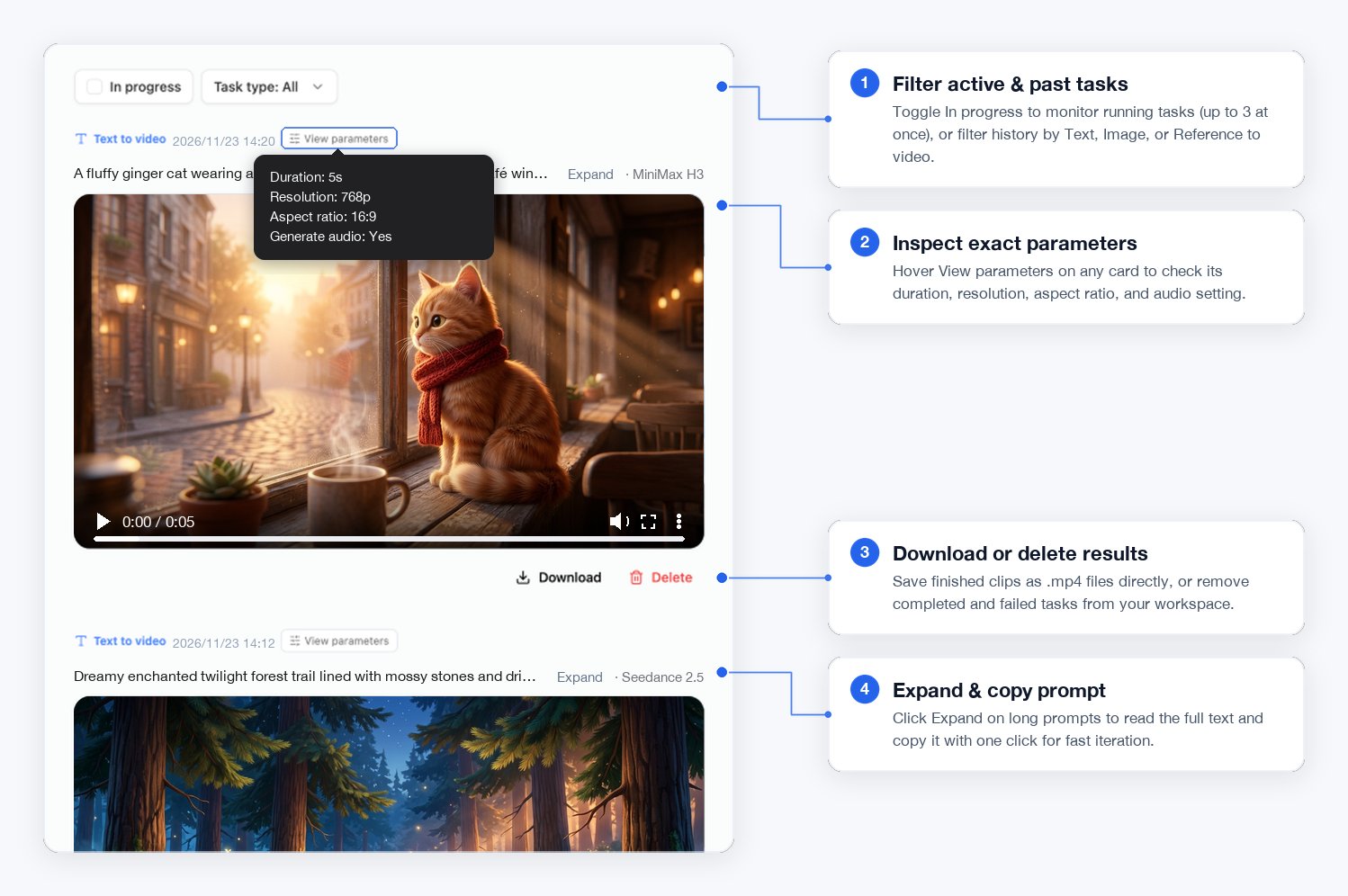
History workspace filters, parameter tooltip, prompt expansion, and download/delete actions.
- Run multiple tasks at once: You can have up to 3 active tasks (in queue or generating) running at the same time.
- Live progress & notifications: Active cards display the current status (In queue or Generating video), elapsed time, and an estimated wait range. Enable browser notifications when prompted to receive an alert as soon as your video is ready.
- Filter & manage results: Use the top bar to view In progress tasks or filter by Task type. On any card, hover over View parameters to inspect the exact settings, click Expand to read and Copy prompt, Download the
.mp4file, or Delete completed and failed items.
Explore Next
Examples & Showcase
Watch 4 real ChatHub outputs with audio, downloadable input assets, and prompts.
Text to Video
Create original clips purely from text with full aspect ratio control.
Image to Video
Animate a starting frame or smoothly transition to an optional ending frame.
Reference to Video
Combine multiple reference images using clickable prompt tags.
Models & Prompting
Compare MiniMax H3, Seedance 2.5, and Seedance 2.0, plus prompting formulas.