
How to Use Text to Video
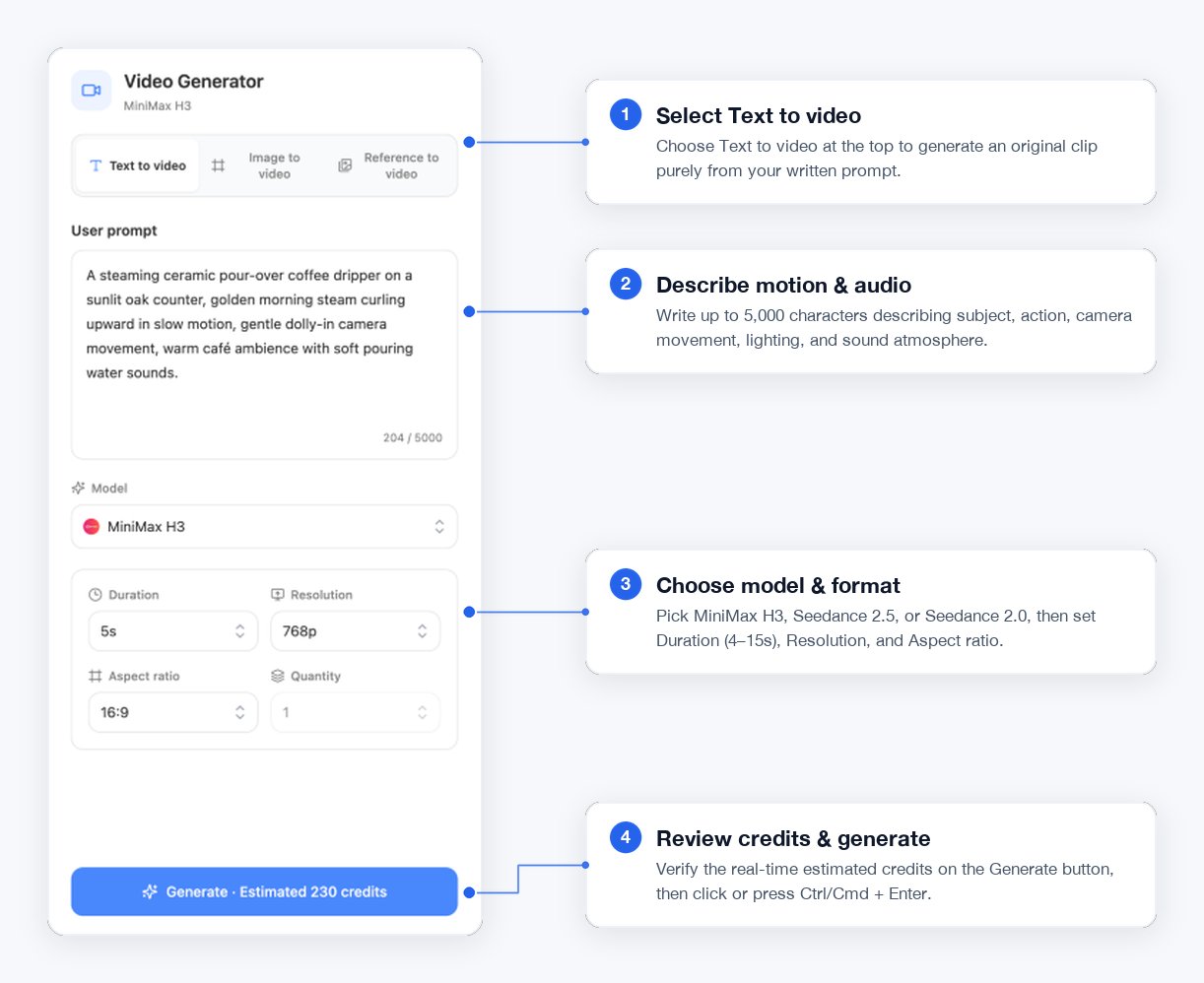
Text to video mode with model selection, format settings, and live credit estimate.
1
Select Text to video
In the Video Generator, confirm that Text to video is selected in the mode bar at the top of the left panel.
2
Write your prompt
Describe the scene in User prompt (up to 5,000 characters). Focus on visible movement, camera motion, lighting, and sound atmosphere.
3
Choose model and format
Select a model (MiniMax H3, Seedance 2.5, or Seedance 2.0), then set Duration (4–15s), Resolution, and Aspect ratio. Synchronized audio is included automatically.
4
Review credits and generate
Verify the real-time estimate on the Generate button (
Generate · Estimated X credits), then click Generate or press Ctrl + Enter / Cmd + Enter.Choosing an Aspect Ratio
Text to video supports six selectable aspect ratios:Prompt Examples
You can copy and adapt either example to get started:- Product / café atmosphere:
A steaming ceramic pour-over coffee dripper on a sunlit oak counter, golden morning steam curling upward in slow motion, gentle dolly-in camera movement, warm café ambience with soft pouring water sounds.
- Atmospheric nature scene:
A misty pine forest trail at twilight lined with mossy stones, warm golden fireflies slowly rising into the cool blue air, smooth forward glide camera movement, soft rustling leaves and gentle evening crickets.